Setup guide
How to set up your app, step by step
About 10 minutes. No technical knowledge needed. You only do this once.
Download the PDF guideBefore you start
- Your order email with the sheet link and your activation key
- A free Google account (a Gmail address works) that you are signed in to
- A computer is easiest for the setup. After that your app works on your phone too
The screenshots show AceIQ as the example. Yours will show the name of the app you bought.
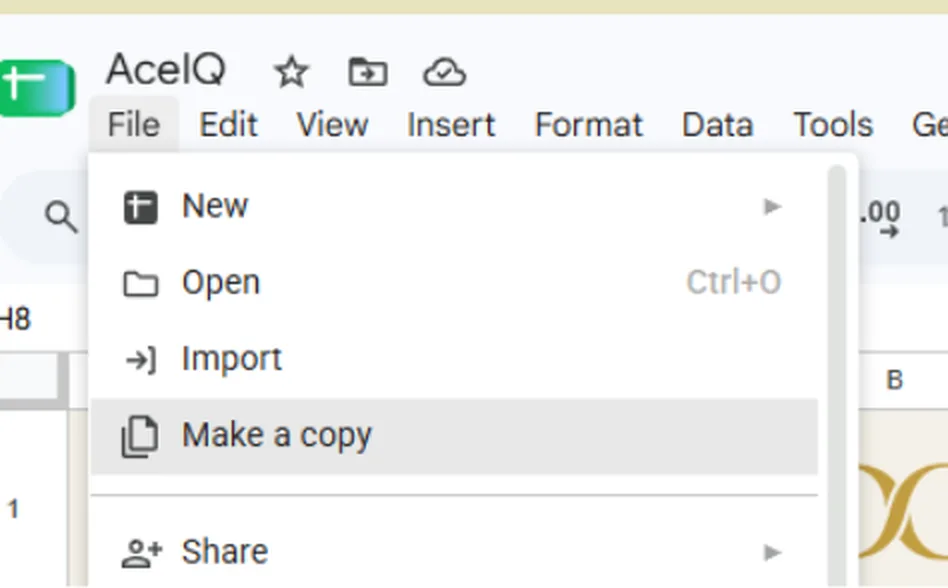
1Make your own copy of the sheet
Open the sheet link from your order email. Click File, then Make a copy. Give it a name you will recognise, then click Make a copy again. Use your own copy from now on. The original is only the template.
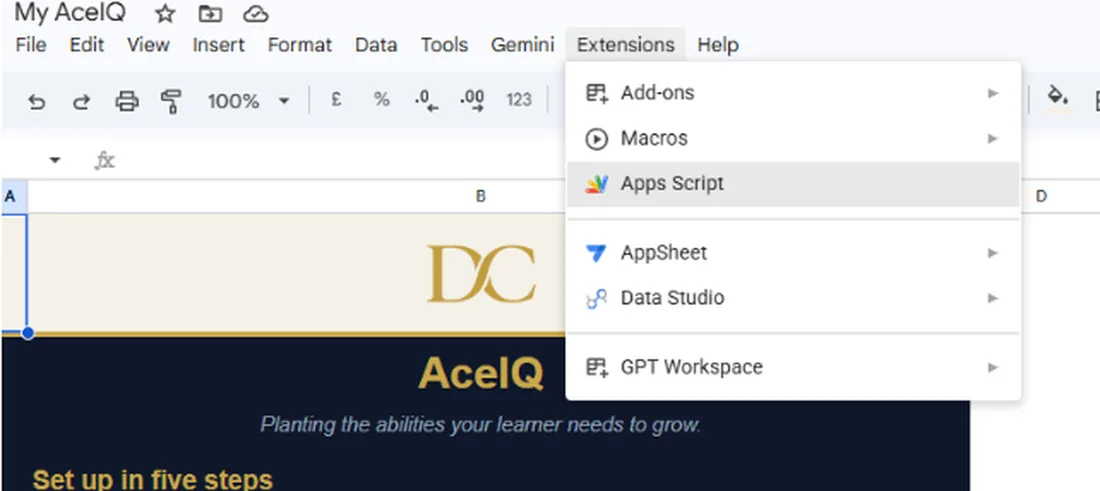
2Open Apps Script
In your new copy, click Extensions, then Apps Script. A new tab opens. That is the engine room of your app, and you do not need to type anything in it.
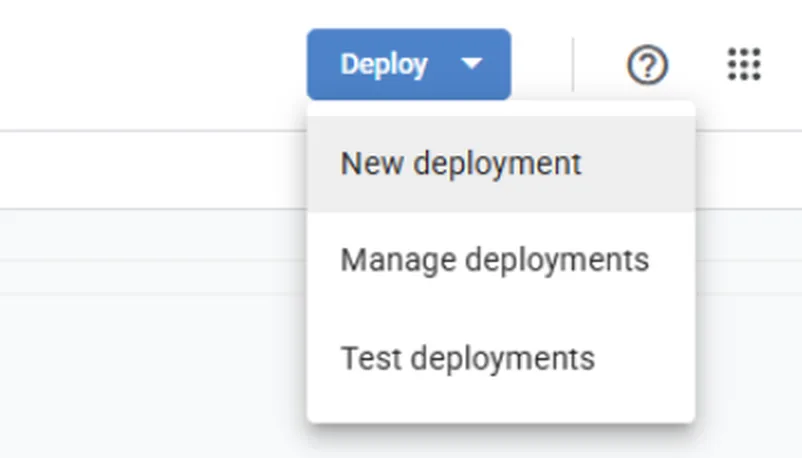
3Click Deploy
In the top right corner of the new tab, click the blue Deploy button.

4Choose New deployment
In the little menu that opens, click New deployment. If it asks you to select a type, pick Web app.
5Fill in the settings
Type any description you like, for example the name of your app. Then check that Execute as is set to Me and Who has access is set to Anyone. Click Deploy.
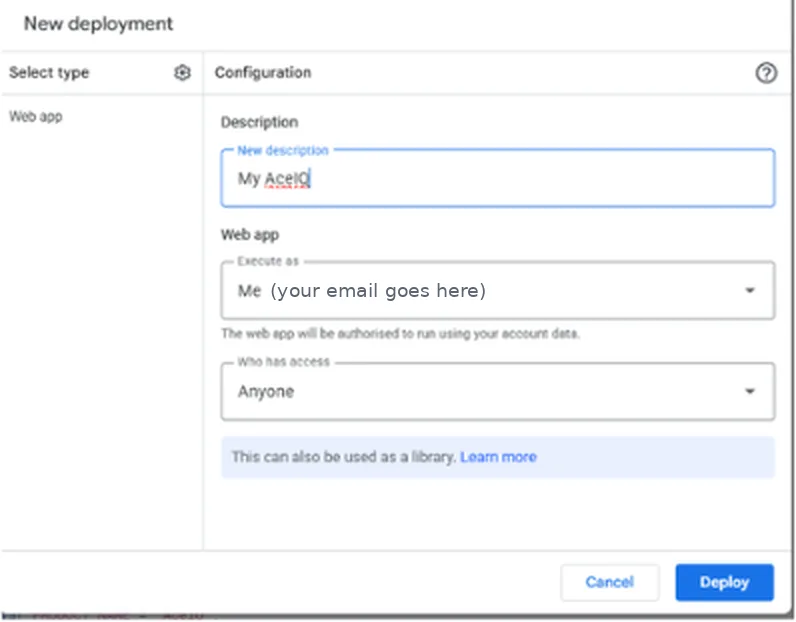
Choosing Anyone does not make your data public. Nobody can open your app without your private link.
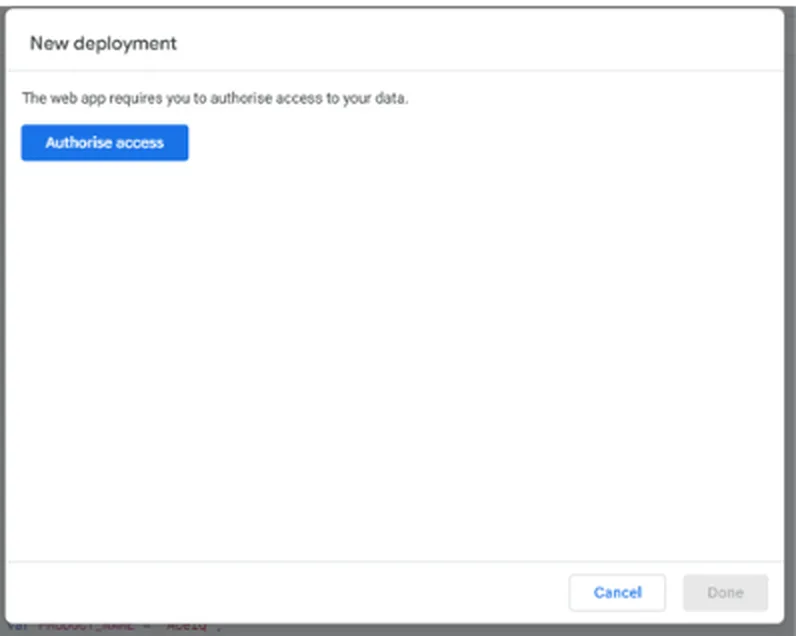
6Authorise access
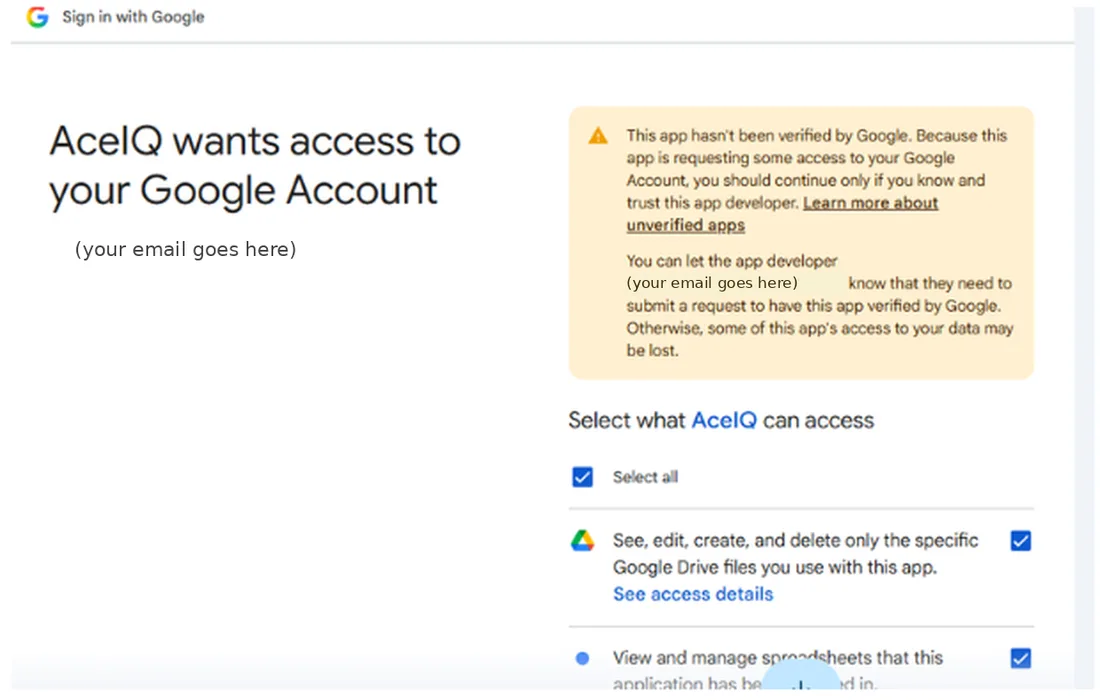
Google now asks you to allow the app to work in your account. Click Authorise access and choose your Google account.
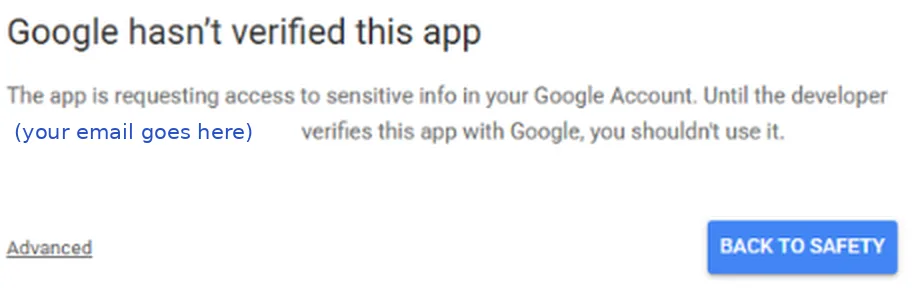
7Google shows a warning. This is normal
You will see a page that says Google hasn’t verified this app. Google shows this for every app that is not a public store app. The app is your own copy, running only inside your own Google account. Click Advanced.
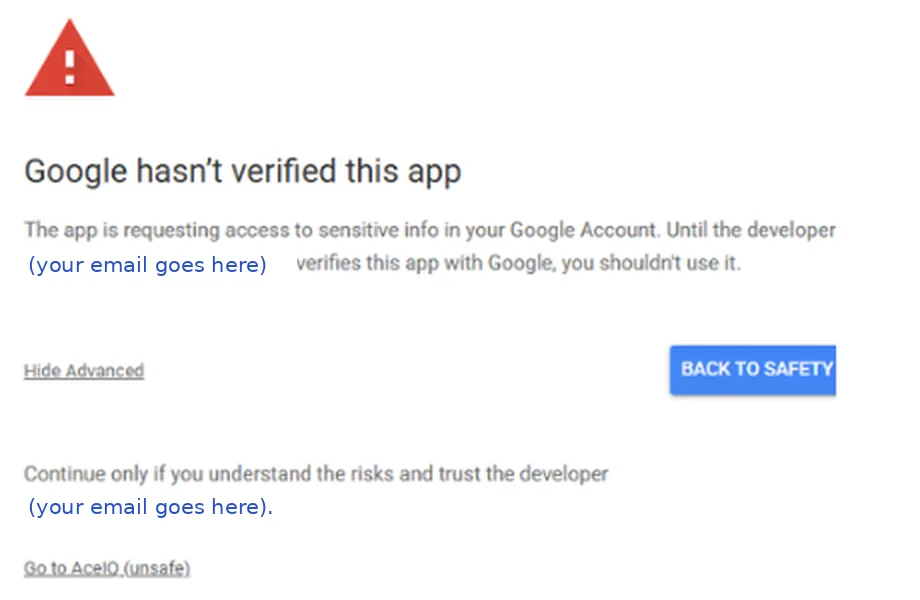
8Continue to your app
At the bottom of the page click Go to (your app name) (unsafe). The wording sounds scary, but it only means Google has not reviewed the code. It is your copy and only you can see your data.
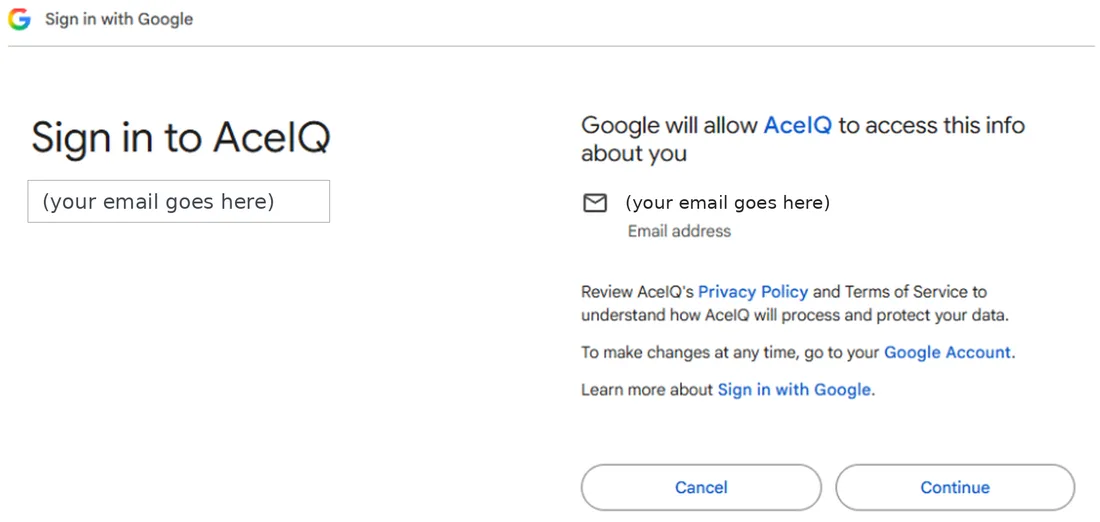
9Sign in and continue
If Google asks you to sign in, click Continue.
10Allow access
Tick Select all if it is not ticked, scroll to the bottom of the page and click Continue or Allow. The app needs these permissions to read and write in your own spreadsheet.
11Copy your web app address
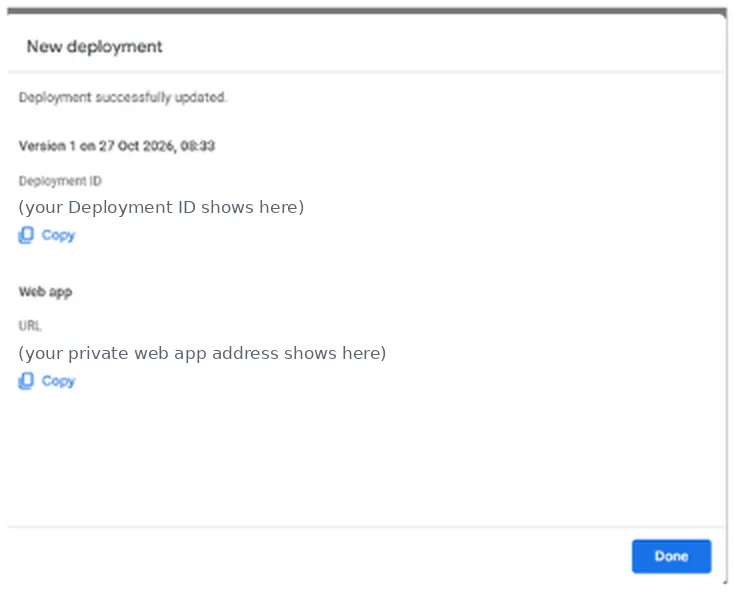
You will see Deployment successfully updated. Under Web app click Copy next to the long address that starts with https://script.google.com. Then click Done.
12Go back to your spreadsheet and open the app menu
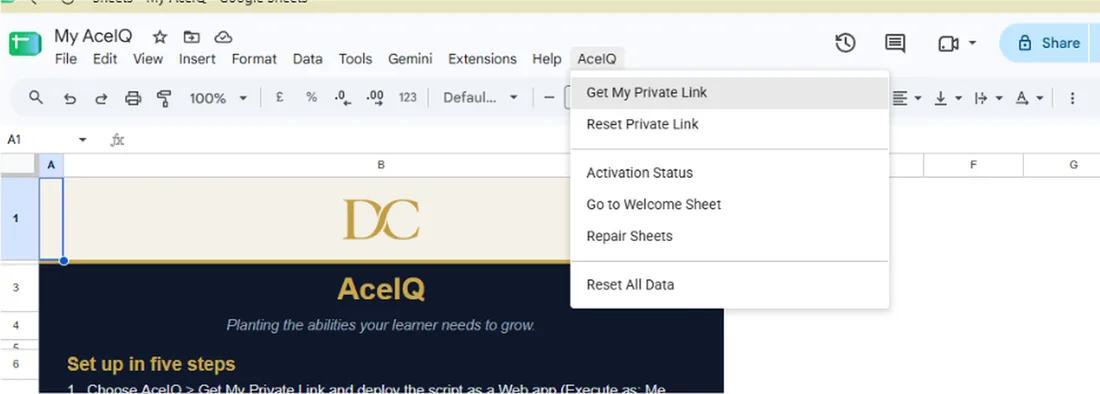
Go back to the spreadsheet tab. In the menu bar you will now see a menu with the name of your app. If it is not there yet, refresh the page and wait a few seconds. Open it and click Get My Private Link.
13Paste the address and save it
Paste the address you copied into the first box and click Save address. Your private link then appears. Click the gold button to open your app.
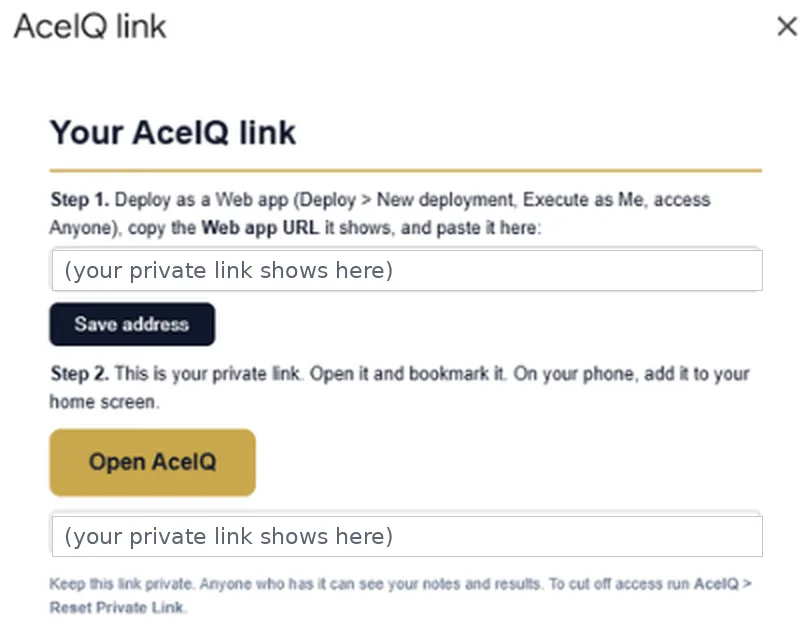
Keep your private link private. Anyone who has it can open your app. If it ever gets shared by mistake, use Reset Private Link in the same menu to switch the old one off.
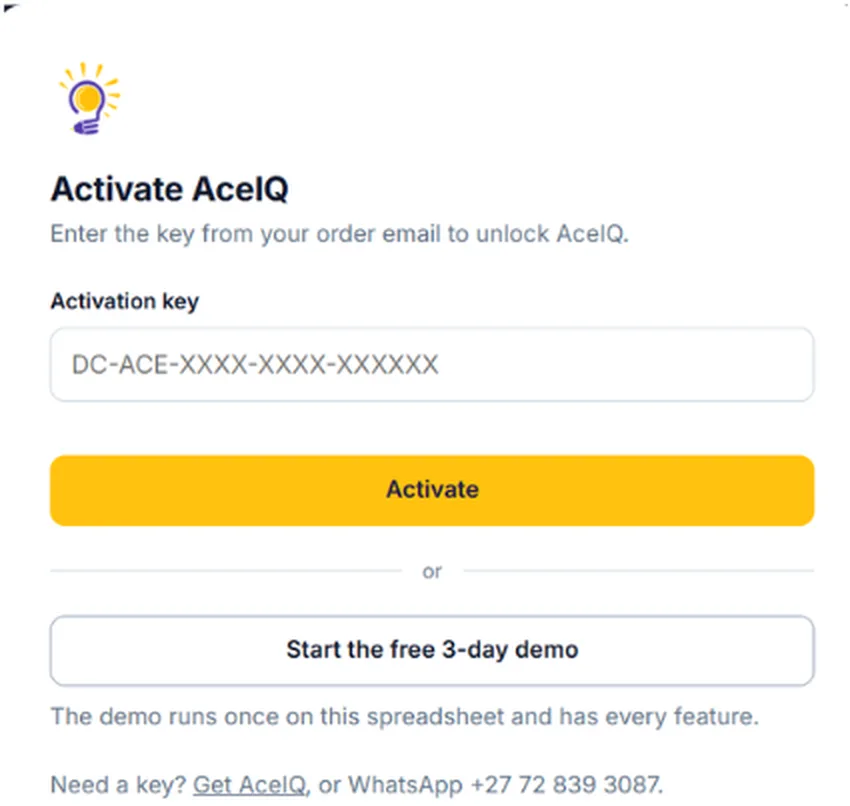
14Activate your app
Paste the activation key from your order email and click Activate. You can also start the free demo to try it first. Then bookmark the page. On your phone, open the link and choose Add to Home screen, and it will sit with your other apps.
If something looks different
The menu is not showing in my spreadsheet
Refresh the browser page and wait about ten seconds. Make sure you are in your own copy, not the original template.
My link says I need access or shows a Google error
Go back to Deploy, then Manage deployments, and check that Who has access is set to Anyone and Execute as is set to Me.
I changed something and the app did not update
In Apps Script click Deploy, then Manage deployments, then the pencil icon. Under Version choose New version and click Deploy. The link stays the same.
I lost my private link
In the spreadsheet open the app menu and click Get My Private Link again.
Stuck? We are happy to help.
WhatsApp +27 72 839 3087. We reply within 24 hours.
AI features can make mistakes, so always read what they give you before you use it.